What can people see when you share your screen on a Mac?
Entire screen, one window or one browser tab: what each option shows the people on your call, and the private things that most often slip into a screen share.
Every meeting app asks the same question when you click Share: the entire screen, a window, or (in a browser) a tab. The answer decides how much of your Mac the call sees.
What each option shows
| You share | The call sees | The call doesn't see |
|---|---|---|
| Entire screen | Everything on that display: every window, notification banners, the menu bar, the Dock, desktop icons and the wallpaper | Other displays, if you have more than one |
| One window | Only that window's content | Other apps, notifications, the desktop, the Dock and the menu bar |
| One browser tab | Only the page in that tab | The rest of the browser, your other tabs and every other app |
What slips out in an entire-screen share
Sharing your entire screen is the most common choice, and the one that shows the most. These are the things people most often show by accident:
- Notification banners. Message previews, email subject lines and calendar alerts appear in the top-right corner for anyone to read.
- Chat apps in the background. Messages, WhatsApp or Slack open behind your work, with conversation lists and names visible.
- Dock badges. Unread counts on Mail, Messages or Slack.
- The menu bar. The clock, battery, Wi-Fi and every status icon you've installed.
- Desktop icons. File and folder names, such as a contract or a salary sheet saved to the desktop.
- Your other tabs. If you share a browser window, its whole tab strip and bookmarks bar come along.
How to check what they see
- Zoom draws a green border around whatever is being shared.
- Your browser shows a "sharing" bar or icon while a web meeting shares your screen.
- macOS shows a screen-recording icon in the menu bar while any app captures your screen.
The safest habit is to choose the smallest option that works: a tab for a web page, a window for one app. Our guide to sharing one window in Zoom, Google Meet and Teams shows how.
Sharing your whole screen without the private parts
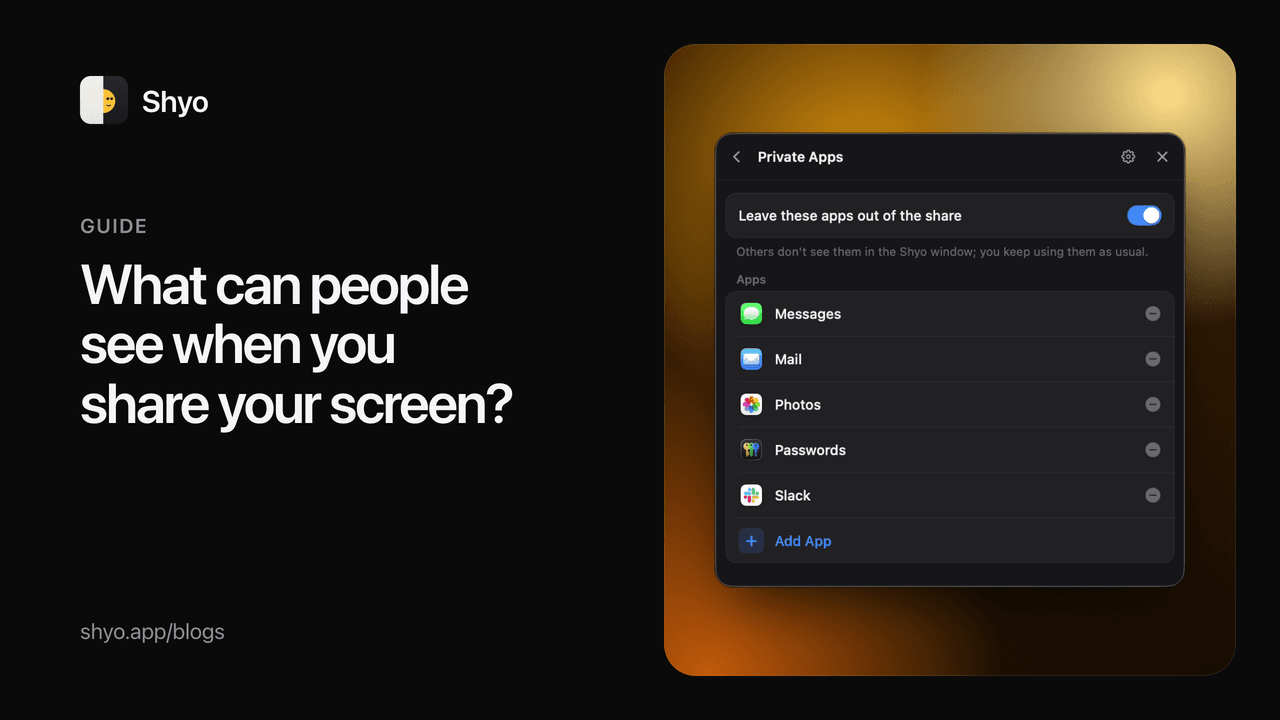
Sometimes you do need to move between apps while sharing. That's what Shyo is for. It makes a window called "Shyo" with a live copy of your entire screen, minus the private apps you choose, notifications, desktop icons and the Dock. You share it like any other window, and the call sees your work and nothing else, while your own screen doesn't change.
If you still share your entire screen from Chrome, Edge, Arc or Brave, Shyo notices and hides your private apps until you stop. Other apps don't let Shyo see that kind of share, so there, share the "Shyo" window instead.