How to hide notifications while screen sharing on a Mac
A message preview popping up in the middle of a demo is the most common screen-sharing slip. Here are four ways to keep notifications off your share on a Mac, from macOS settings to sharing a single window.
When you share your entire screen, the people on the call see everything that appears on it. That includes notification banners: a message preview from Messages or WhatsApp, an email subject line, a Slack mention. They show up in the top-right corner for a few seconds, which is plenty of time for everyone to read them.
Here are four ways to stop that on a Mac, from the quickest to the most thorough.
1. Check macOS's own setting for shared screens
macOS can hold back notifications while your display is being mirrored or shared.
- Open System Settings and choose Notifications.
- Find the option for notifications when mirroring or sharing the display (you may need to scroll down).
- Make sure it's off, so notifications aren't allowed while you share.
It's off by default, so if notifications still appear during calls, check whether it was turned on at some point. Keep in mind that it only works when macOS recognises that your screen is being shared, and it only covers notifications: your Dock badges, menu bar and other windows are still visible.
2. Turn on Do Not Disturb before the call
A Focus mode silences notifications on your Mac, whatever you're sharing.
- Click Control Center in the menu bar.
- Click Focus and choose Do Not Disturb.
You can also schedule a Focus in System Settings › Focus, for example during your usual meeting hours. The catch is that you have to remember to turn it on, and you'll miss notifications you actually wanted to see while it's on.
3. Share one window instead of your entire screen
This is the most reliable fix. When you share a single window, the call only sees that window. Notification banners are separate windows, so they never appear in the share, and neither do your other apps, your desktop or your Dock.
Every big meeting app lets you pick a window when you start sharing. We walk through sharing one window in Zoom, Google Meet and Teams step by step.
The downside: you can only show that one window. If you need to switch to another app during the call, you have to stop and share again.
4. Share a clean copy of your screen with Shyo
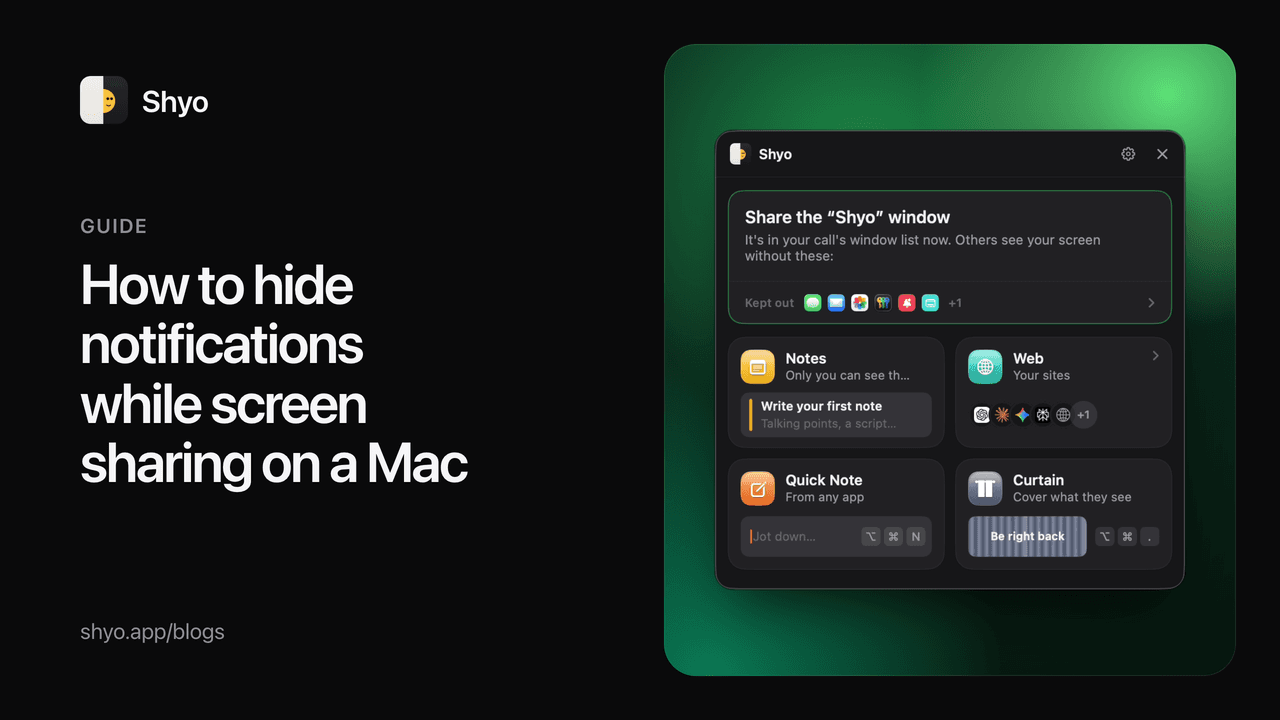
Shyo is a Mac app built for this problem. It makes a window called "Shyo" that shows a live copy of your whole screen, with your notifications, the private apps you choose, your desktop icons and the Dock left out. You share that window in Zoom, Meet or Teams instead of your entire screen.
You keep seeing your notifications as usual. The call doesn't. And because it's a copy of your whole screen, you can move between apps without stopping the share.
The "Shyo" window appears by itself when a call starts, so it's already in your meeting app's list when you click Share.
Quick checklist before a call
- Close or hide chats and mail you don't need.
- Turn on Do Not Disturb, or check the mirroring setting in System Settings › Notifications.
- Share a window (or the "Shyo" window), not your entire screen.
- Glance at your desktop and Dock: file names and unread badges are visible too if you share your entire screen.
For a fuller picture of what an entire-screen share reveals, see what people can see when you share your screen on a Mac.